How to Set Up and Optimise Your Google Business Profile in Singapore
How to set up, verify and optimise a Google Business Profile in Singapore, and the name, address and category mistakes to avoid.
Table of contents
Free Website Audit
We'll personally review your website across 6 areas. UX, SEO, performance, mobile, conversion, and send you a detailed, actionable report within 48 hours. No cost. No catch.
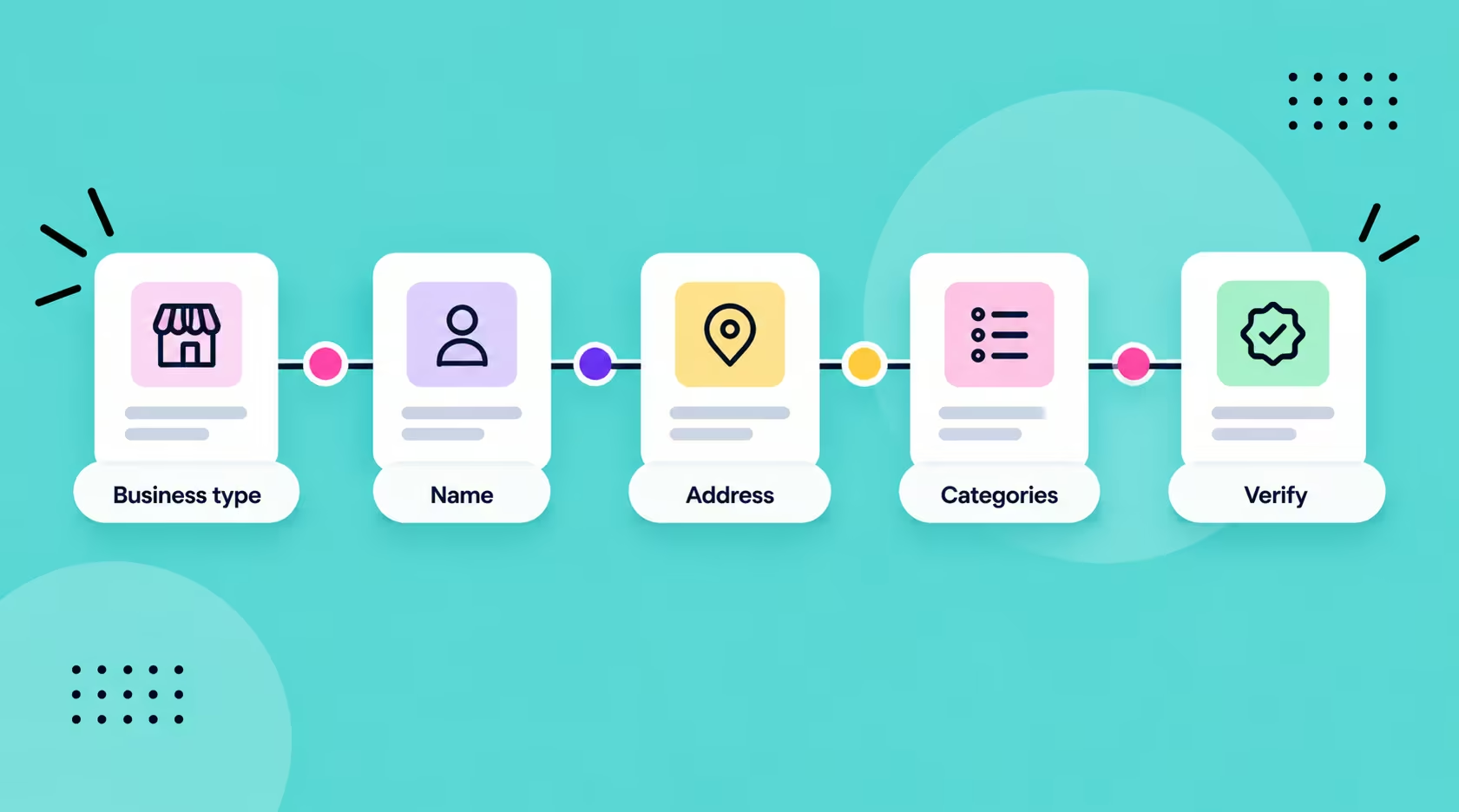
Setting up a Google Business Profile in Singapore comes down to five early decisions. They are your business type, name, address, categories and how you verify. Get those right, then fill in your services, photos and hours. Google says video verification can take up to five business days. Most of the trouble in my own setup came from details that did not match what Google could check. You can do all of it yourself, for free.
What Do You Need Before You Start?
You need six things ready before you open the setup screen. Having them to hand avoids the stalls I hit later. This guide stays on the profile itself. How local SEO for Singapore businesses decides who appears in the map results is a bigger topic.
- A Google account that your business will keep using
- Your business name exactly as it appears on your signage and in your ACRA records
- A real address customers can visit, or a decision to hide it and list service areas
- A phone number and website address that match your own website
- Proof for the verification video, such as signage, branded tools or a recent invoice
How Do You Set Up Your Google Business Profile?
Setup comes down to five steps, and the first four are decisions that are painful to undo. Make them in order, because each one affects the next. Google's guidelines say a profile can be suspended for an ineligible address, an unacceptable name or duplicate listings.
Step 1: Decide Whether You Are a Storefront, Service-Area or Hybrid Business
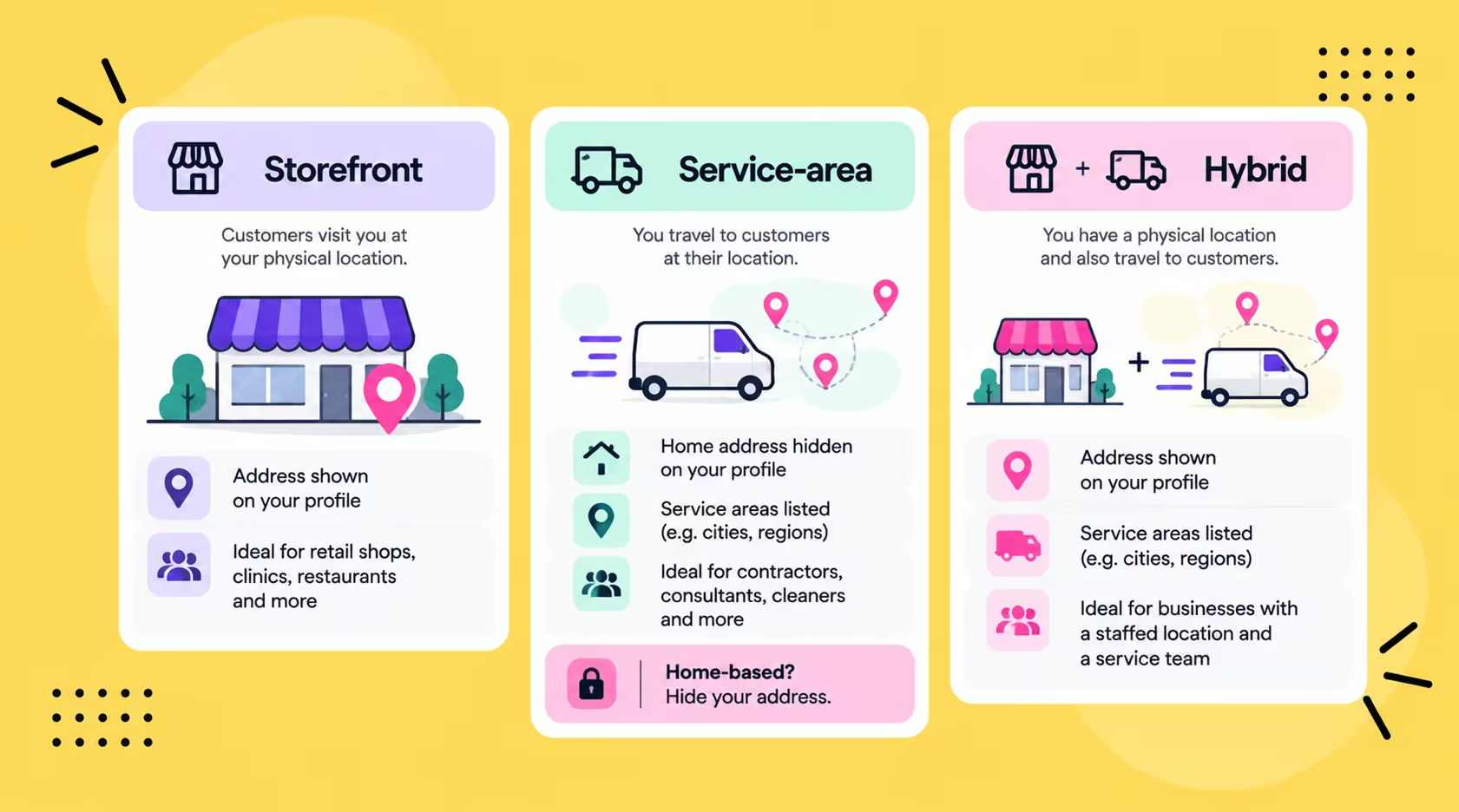
Choose storefront if customers visit you, service-area if you travel to them, and hybrid if you do both. Google offers profiles to businesses with a physical location customers can visit, or that travel to customers. A service-area business gets one profile with a defined area. That area should not stretch much beyond about two hours' driving from your base.
Singapore adds a practical wrinkle. If you run your business from an HDB flat, GoBusiness Singapore says you need a Home Office licence from HDB. That page does not cover customers visiting. Check HDB's rules before you list your flat as somewhere people can drop in. A home-based service-area business should hide its address.
Step 2: Enter Your Business Name Exactly as It Appears in the Real World
Use the name on your signage, website and registration, with nothing added. Google's rule is the name your business goes by in the real world. Leave out taglines, hours, phone numbers and location details. Stuffing keywords into the name is a classic way to get a profile flagged.
I got this wrong. My registered name is Al-Faiz Design Group Pte. Ltd., but I shortened it to ALF Design Group. Nothing was flagged at first. It only became a problem much later, when I tried to verify my address.
Google allows a legal suffix such as Pte. Ltd. if you can show it is consistently part of your name. My profile now shows the full registered name. I cannot say whether a shorter name is safe for you. Check that your name matches your signage and your ACRA record before you start.
Step 3: Add a Real Address, or Hide It and Set Your Service Areas
Enter an address people can actually visit, or hide it and list the areas you serve. Google does not accept P.O. boxes, remote mailboxes or virtual offices as a business location. If a mailbox is all you have, do not enter it as your premises.
If you work from home or travel to customers, set up as a service-area business and hide your address. Then add the neighbourhoods you cover, such as Tampines, Jurong or Bedok. Co-working spaces only qualify with clear signage, customers visiting during business hours and your own staff on site.
Step 4: Choose a Specific Primary Category and Only the Sub-Categories You Need
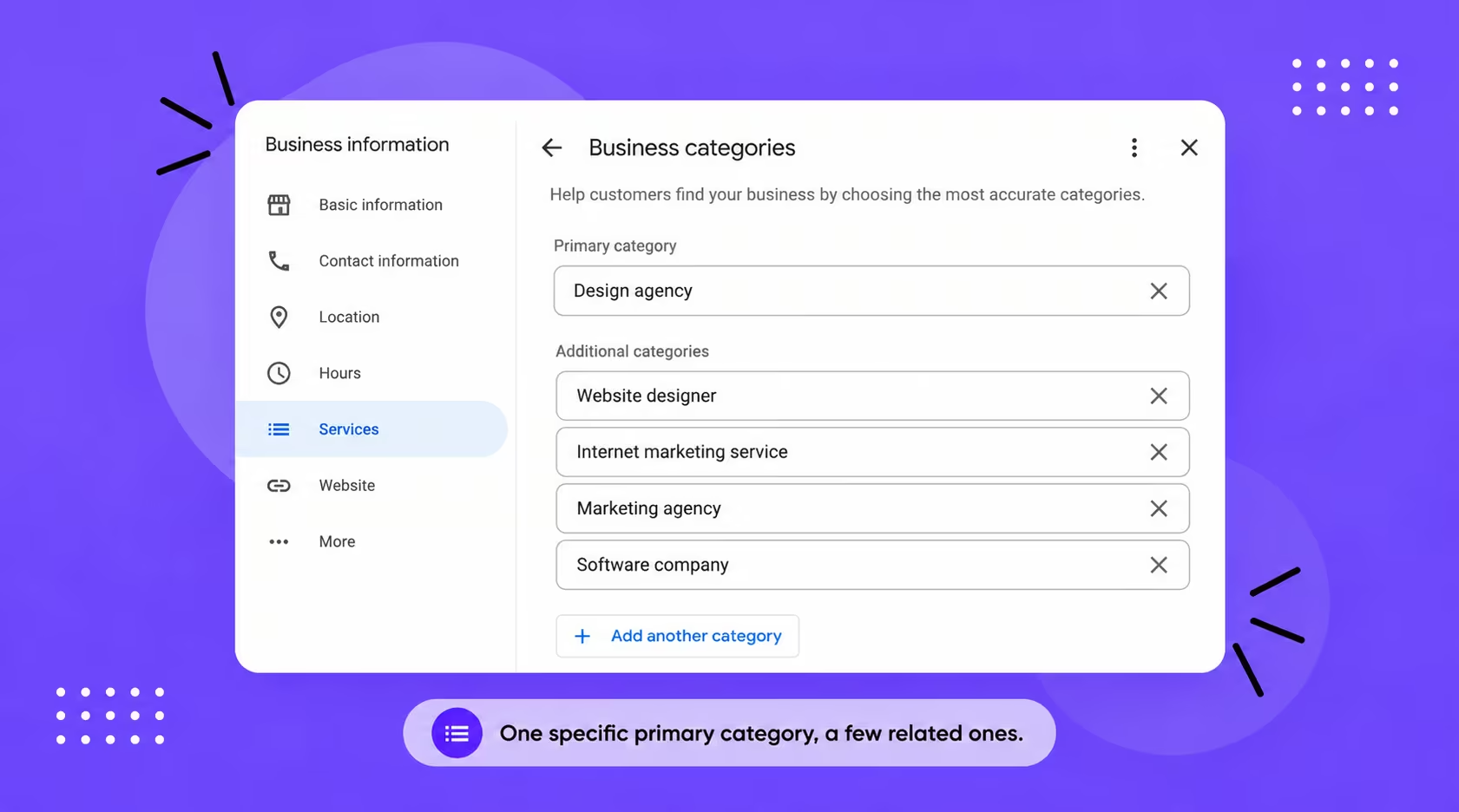
Pick the most specific primary category that describes what your business is. Then add only secondary ones that say something different. Google asks for the fewest categories that describe your core business. Whitespark favours a narrow specialty such as injury lawyer over a broad label like law firm. It notes you can add up to nine secondary categories.
I added far too many. Many of my sub-categories were unrelated, and some simply repeated each other, because I assumed more would help. My primary category is now web design, and I kept only the related ones that add something new. Whitespark suggests reviewing them about every six months, since Google updates its category list often.
Step 5: Verify Your Profile
Verify with a live video that proves you really run the business. Google's video verification page asks for a continuous, unedited recording of at least 30 seconds, filmed on a mobile device. Storefronts show their location, signage and proof such as a point-of-sale system. Service-area businesses show where they operate, branded tools, and a permit, invoice or utility bill. Google says review can take up to five business days.
This is where mine went wrong. The profile asked me to verify my surroundings on video. I did, and it was rejected every time. It became a loop I could not get out of. I contacted Google support, and they called me the next day. They walked me through re-adding my address and checking that my business name matched my ACRA records. After that, it went through.
How Do You Optimise Your Profile Once It Is Live?
Optimising means making every field match what you actually sell, with real photos and accurate details. Edit slowly and deliberately. Changing your name, category, phone number or map pin too quickly can trigger a suspension. So can changing contact details before updating other listings.
Step 6: List Services That Match Your Categories
List only the services that sit under your chosen categories. Whitespark notes that your categories determine which services you can add. A wrong category limits the services you can list. I first listed the wrong services under the wrong main category, so my profile described a business I was not. Fixing the categories first made the services list easy to correct.
Step 7: Add Real Photos
Add sharp, well-lit photos that show your business as it really is. Google's photo guidance asks for JPG or PNG files between 10 KB and 5 MB. The ideal size is 720 by 720 pixels. It discourages heavy editing or AI-generated changes. It suggests at least three photos each of your exterior, interior, products, team and work in progress, where they apply. Photos only appear once the business is verified.
Step 8: Complete Your Description, Hours and Contact Details
Fill in your description, hours, phone number and website, and keep them identical to your own website. Write the description in plain language about what you do. Google's rules ban promotions, sales and links in descriptions. List your regular customer-facing hours, and leave hours out entirely if you only work by appointment.
The Monthly Upkeep Worth Your Time
Keep your details accurate, reply to reviews and add fresh photos when something changes. Those are the upkeep jobs that clearly matter. A monthly SEO maintenance checklist is a handy place to schedule them. Reviews and listings elsewhere sit in the local SEO topic above, so I will not repeat them here.
Google Posts are optional. I post to mine the way I would on social media, but not regularly. I cannot tell you whether they move anything. If you have time, post. If you do not, I would not let them delay the basics above.
What Goes Wrong With a New Profile?
Most problems trace back to a mismatch between what you entered and what Google can check. Two are worth planning for: verification that keeps failing, and a suspended profile. Both are easier to fix when your name, address and categories are right from the start.
How to Fix It: Verification Keeps Getting Rejected
Re-record the video with everything the first attempt missed. Google says a failed attempt comes with reasons. Submit a new video through the Review issues option, and include everything from the first one plus what was missing. Check that your name and address match your registration before you try again. If it still fails, contact Google support, as I did.
How to Fix It: Your Profile Is Suspended
Find the reason in the appeals section of your dashboard. Then gather evidence that matches the name and address on the listing. Whitespark's recovery guide suggests putting registration documents, licences and utility bills in one folder. Then submit the appeal and leave the listing alone while it is reviewed.
Common causes include an ineligible address, duplicate listings, keyword stuffing in the name and bought reviews. If the first appeal is denied, you can ask for one more review. After that, post your case in the Google Business Profile Help Community.
Do You Need to Pay Someone to Set Up Your Google Business Profile?
No. You can set up and optimise your profile yourself, and Google does not charge for it. That is what I tell other business owners. The mistakes I made came from the details above, not from anything technical.
Outside help makes sense in narrower cases. An appeal that keeps failing is one. Another is when the profile is one part of a wider plan and you want SEO support around it. Even Whitespark's recovery guide lists hiring a local SEO expert only as a later step.
Frequently Asked Questions
Is a Google Business Profile free?
Yes. Creating and managing a Business Profile costs nothing. If you hire someone to optimise it, you are paying for their time, not for the profile. Ongoing work such as SEO maintenance is a separate decision.
Can I create a Google Business Profile without Gmail?
Yes. Google lets you create a Google Account with a Gmail address or another email address you prefer. Use an account your business will keep using, so access does not depend on one person.
Who is eligible for a Google Business Profile?
Businesses with a physical location customers can visit, or that travel to customers, are eligible. Online-only businesses without in-person services are not. Virtual offices and mailbox addresses do not count as locations.
How long does Google Business Profile verification take?
Google says video verification review can take up to five business days. If it fails, you get the reasons and can record a new video. Mine took much longer because of repeated rejections, which is why matching your name and address first matters.
Conclusion
Once your profile is verified, check three things. Your name matches your signage and your ACRA record, your primary category is specific, and your services match your categories.
Then decide what upkeep you can actually keep up. A few accurate fields beat a posting plan you drop after a fortnight. For wider ways to win customers who search near you, read SEO for small businesses in Singapore.
{{build-better-experience="/directory"}}
Categories
Written By
.webp)
Resources
Related Articles
Deep dive into our latest news and insights.