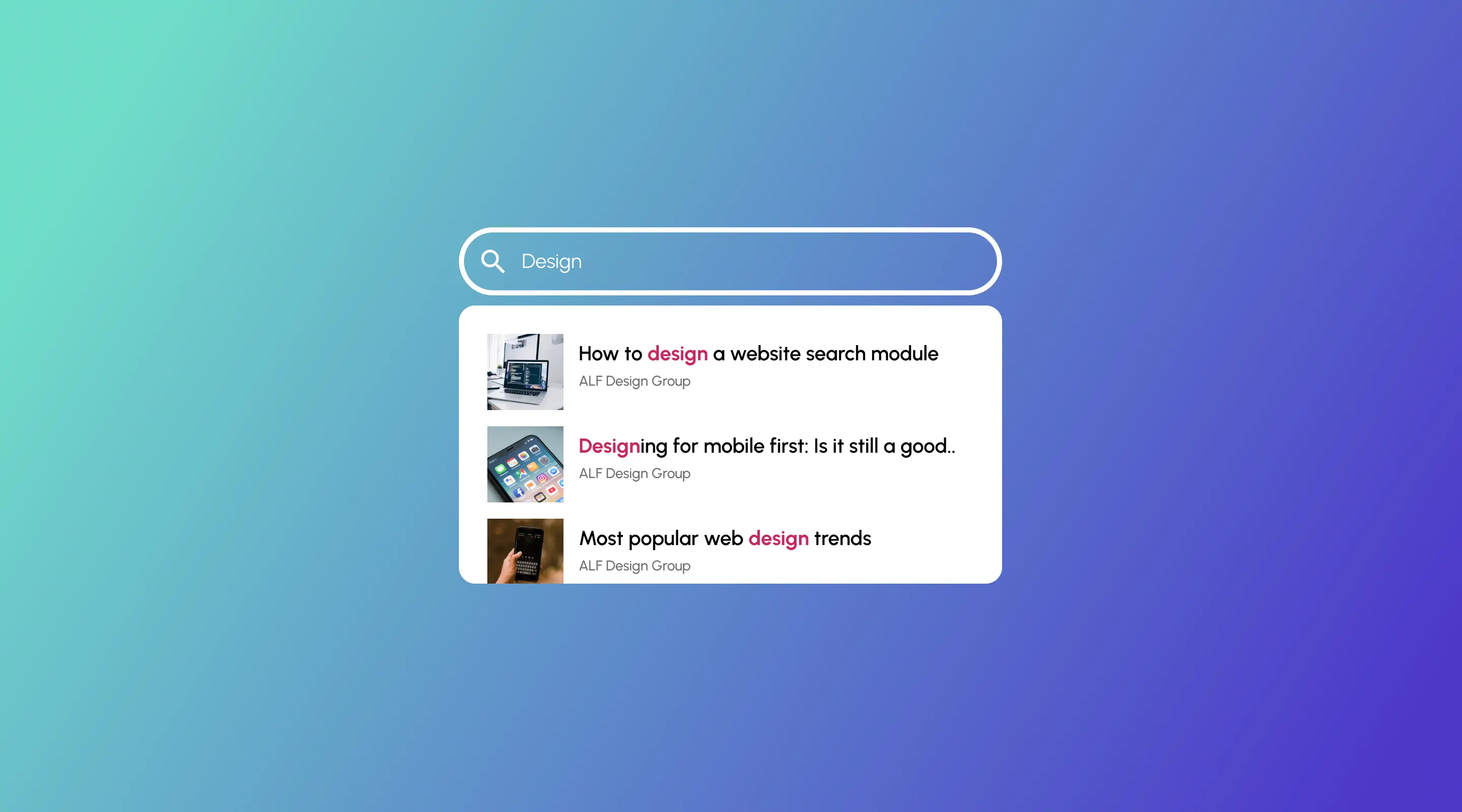
Best Practices for Website Search Design: A UX Guide
Discover how to improve UX with best practices for website search design, tailored for Webflow and UX teams in Singapore.
Table of contents
Free Website Audit
We'll personally review your website across 6 areas. UX, SEO, performance, mobile, conversion, and send you a detailed, actionable report within 48 hours. No cost. No catch.
Website search is one of the most consistently underinvested components of UX design — and one of the most commercially consequential. Users who engage with site search convert at two to three times the rate of users who browse, according to Baymard Institute research, yet nearly 70% of site search experiences fail to meet user expectations due to poor relevance, inadequate filtering, or confusing interfaces. This guide covers the eight design and implementation decisions that most directly determine whether your website's search experience helps users find what they need — or drives them to leave. It also covers the Webflow-specific tooling that makes professional search implementation accessible without custom development.
Search is not a secondary feature on a content-rich website. For many users, it is the primary navigation tool — the path they take when the visible navigation does not immediately surface what they are looking for. A visitor who uses your search is telling you something important: they are engaged enough to keep trying. Whether they find what they need in the next ten seconds, or encounter a blank results page and leave, depends almost entirely on design decisions that most teams make without enough consideration.
This guide addresses those decisions directly — from the visual placement of the search bar to the design of empty states, the configuration of autocomplete, and the measurement framework that allows ongoing optimisation. It is focused specifically on website search design; for broader navigation patterns and information architecture principles, see our guide on intuitive navigation best practices.
Why Website Search Is a Conversion Lever
The business case for investing in search UX is direct. Users who search on a website have expressed active intent — they know what they want and they are trying to find it. That intent profile is significantly more conversion-ready than a passive browser. The search experience is the mechanism that either fulfils that intent or frustrates it.
Poor search performance has measurable commercial consequences. Users who encounter no results on a search query — particularly when the content they are looking for does actually exist on the site — abandon at high rates. Users who cannot filter results to a relevant subset spend longer on-site but convert less. And users who encounter search results that do not match their query develop lower trust in the overall site quality, which affects both immediate conversion and return visits.
Search design is particularly important for specific site categories:
- E-commerce sites — where predictive search, category filtering, and synonym handling directly affect add-to-cart rates
- Content-heavy platforms — blogs, knowledge bases, government portals — where users need to surface specific articles or documents from large libraries
- SaaS platforms and help centres — where users searching for feature documentation or troubleshooting content are at a critical support moment
- Professional services and portfolio sites — where search allows visitors to find case studies by industry, service type, or outcome
Neglecting search design is one of the most common UX mistakes on content-heavy websites. Our article on common UX mistakes and how to avoid them covers this alongside nine other high-impact issues.
1. Make Search Visible — Place It Where Users Expect It
The most fundamental search design decision is placement: where on the page is the search bar, and how visible is it? Users have strong conventions about where they expect to find search, and violating those conventions creates friction before the search interaction has even begun.
Desktop placement conventions
On desktop layouts, the top-right corner is the most conventional and intuitive placement for a search bar or search icon. It is where most users look first, and it is where the search component will be found across the majority of the websites they visit. Top-centre placement works well for e-commerce homepages where search is the primary navigation tool — IKEA Singapore uses this pattern effectively, placing a prominent, expandable search bar at the centre of the header where it immediately signals the preferred navigation path.
Avoid burying search in secondary navigation, hamburger menus, or footer areas. A search component that requires two clicks to reach will be used significantly less than one that is immediately visible — not because users are lazy, but because the cognitive effort of locating the search component reduces the likelihood they will bother with it.
Mobile placement and thumb accessibility
On mobile, the placement convention shifts. The top-right corner remains a common position for a search icon, but increasingly — particularly on content-heavy apps and mobile-optimised sites — search is placed in a fixed bottom bar where it is within comfortable thumb reach. This reflects how mobile users hold and operate their devices: the top of the screen is the least ergonomically accessible area, and requiring a reach to the top-right corner for a frequent action like search creates unnecessary friction.
On mobile, also consider the trigger interaction. A magnifying glass icon that expands a full-width search bar on tap is a clean pattern that preserves layout space whilst making search instantly accessible. The expanded search bar should appear with the keyboard already visible, eliminating the extra tap required to begin typing.
2. Design the Search Input for Ease of Use
The search input itself — the text field where users type their query — has several design parameters that significantly affect usability and are frequently underspecified.
Field width and character capacity
A search field that is too narrow truncates the query as the user types, making it difficult to review and edit what they have written. A minimum of 30–40 characters visible at the default collapsed size is a reasonable starting point; expandable fields that grow dynamically as the user types solve this more elegantly, particularly for queries that naturally exceed that length.
The placeholder text inside the field should be functional rather than decorative. "Search" is adequate; "Search for articles, products, or help topics" is more informative and sets expectations about what the search covers. Avoid placeholder text that disappears as soon as the user focuses the field — if the placeholder contains instructions, it should persist as a floating label rather than vanishing on focus.
Input focus states and micro-interactions
The search field's visual response to user interaction should be clear and immediate. A visible focus ring or border change when the field is active confirms to the user that the interaction has registered. Subtle animations — a slight field expansion, a shadow increase — communicate interactivity without being distracting. For the broader principle of how micro-interactions communicate state and guide users, see our guide on the role of microinteractions in UX design.
Clear and dismiss controls
Once a user has typed a query, provide a clear button (an X icon) that removes the query and resets the field. This is a small detail but a meaningful one: it removes the effort of selecting and deleting text, particularly on mobile, and makes it easy to refine or change a search without abandoning the search context entirely.
3. Implement Autocomplete and Typo Tolerance
Autocomplete — the live suggestions that appear as the user types — is one of the highest-impact search features available, and one of the most commonly implemented poorly. When designed well, autocomplete reduces the cognitive load of query formulation, surfaces content the user may not have known existed, and prevents the zero-results scenario that kills search engagement.
Suggestion sources and ranking
Autocomplete suggestions should be drawn from multiple sources: popular search queries on the site, product or article titles, category names, and synonyms for common terms. The ranking of suggestions should reflect both relevance to the current partial query and popularity — a suggestion that matches what the user is typing but has never been clicked is less useful than one with a demonstrated track record of leading to satisfied users.
Avoid showing too many suggestions. Five to eight options is a reliable range; more than ten creates a scrollable list that users typically do not engage with, and fewer than three may not surface the relevant option the user is looking for.
Typo tolerance and fuzzy matching
A user who types "web desing" instead of "web design" should not see zero results. Typo tolerance — also called fuzzy matching — corrects common misspellings and single-character transpositions automatically, returning relevant results and optionally displaying a "Did you mean...?" suggestion above the results. This feature alone significantly reduces zero-result rates and the abandonment that follows them.
For Webflow sites, both Algolia and Jetboost provide mature autocomplete implementations with fuzzy matching that integrate cleanly with Webflow's CMS. These are significantly more capable than Webflow's native search for content-heavy or search-dependent sites.
4. Design Meaningful Empty States
The zero-results page is one of the most consequential pages on any search-enabled website, and one of the most consistently neglected. When a user searches and finds nothing, they have three options: refine their query, explore the site via navigation, or leave. The empty state design determines which of those three outcomes is most likely.
What a good empty state contains
A well-designed zero-results page should acknowledge the failed query specifically, suggest alternative actions, and remove the dead-end feeling that a blank page or a simple "No results" message creates. The core elements:
- Acknowledge the query: "No results for 'sustainable packaging Singapore'" — show the user what was searched, not just a generic failure message
- Offer refinement guidance: spell-check suggestions, broader category options, or a prompt to try different keywords
- Surface fallback content: popular searches, featured categories, or recently published content that might be relevant
- Provide an escape route: a link to browse all content, a link to the homepage, or a contact option for users who need human help finding something specific
The empty state should be designed with the same care as any other page state. A friendly, on-brand message with a helpful next step retains significantly more users than a sparse "0 results" notification.
5. Build Filters That Help Users Narrow Results
For sites with substantial content — e-commerce catalogues, blog archives, case study libraries, job boards — filters are what separate a search that surfaces a relevant result from one that surfaces fifty results and leaves the user to manually evaluate each one. Filters allow users to progressively narrow their results based on attributes that matter to them, without requiring them to reformulate their query.
Filter UI patterns
The most effective filter patterns for different use cases:
- Checkboxes — for multi-select category filters where users may want results from more than one option (e.g. industry type, content category)
- Toggle switches — for binary attributes (available/unavailable, featured/all, free/paid)
- Sliders — for continuous ranges such as price, date range, or file size
- Faceted dropdowns — for hierarchical attributes where selecting a parent category reveals sub-options (useful for large product catalogues)
Filter placement matters as much as filter design. On desktop, a left-hand filter panel is the established convention for search results pages — it mirrors e-commerce platforms users are familiar with and keeps filters visible throughout the browsing session. On mobile, filters typically collapse into a filter sheet that appears as a bottom drawer when triggered.
Always show the active filter state clearly: a count of applied filters, a way to remove individual filters, and a "clear all" option. Users should never have to guess which filters are active or how to reset to unfiltered results.
6. Index the Right Content
A search experience is only as good as what it can find. If your search index is incomplete — missing blog posts, excluding help documents, or failing to surface page content beyond the title — users will get zero results for queries that should have answers, and they will draw the correct conclusion: the search does not work properly.
What to include in your search index
For most content-rich websites, the search index should cover: all published blog posts and articles, product or service pages, case studies and portfolio items, help documentation and FAQs, team profiles and about content, and any landing pages containing substantive content. Page titles, meta descriptions, headings, and body text should all be indexed — not just titles.
Equally important is what to exclude: utility pages (login, password reset, thank-you pages), duplicate content, and any pages with content that is not relevant to user queries. An index full of administrative pages creates noise that degrades result relevance.
Webflow search indexing
Webflow's native Site Search indexes published CMS items and static pages automatically, and the search settings panel provides controls over which fields from each CMS collection are included in the index. For sites requiring more granular control — custom field weighting, synonym mapping, or multilingual search — Algolia's Webflow integration provides a more capable layer that maintains sync with the Webflow CMS without manual intervention.
7. Prioritise Mobile Search Experience
In Singapore's market, mobile accounts for the majority of web traffic across most site categories. This means the mobile search experience is not a responsive adaptation — it is the primary use case, and the design should reflect that.
Mobile search interactions have specific characteristics that differ from desktop: users type less (queries are shorter), they rely more heavily on autocomplete suggestions, they expect faster results, and they have less patience for interface states that require multiple interactions. These characteristics should drive specific design decisions:
- Search results should load instantly or with a visible skeleton loader — a blank screen while results load feels broken on mobile
- The results layout should be optimised for vertical scrolling with clear, tappable result cards that give enough information to evaluate relevance at a glance
- Filters on mobile should use a full-screen or bottom-sheet pattern rather than trying to compress a desktop filter panel into a narrow viewport
- The keyboard should not obscure results — ensure the results area scrolls correctly when the keyboard is visible
Also ensure that search results pages meet accessibility standards: sufficient colour contrast, focusable elements, and screen-reader-compatible result announcements. Our guide on improving website accessibility without compromising design covers the specific requirements in detail.
8. Track and Optimise Search Analytics
Search analytics provide some of the most direct insight into user intent available on any website. Every query a user enters is a signal about what they are looking for — and the gap between what they search for and what the site provides is a direct guide to content and navigation improvements.
Key metrics to track
- Top search queries — what users are searching for most frequently; high-volume queries with poor click-through rates indicate either poor results or irrelevant content
- Zero-result queries — queries that return no results; each one is either a content gap to fill or an indexing issue to fix
- Click-through rate from search results — the proportion of searches that result in a click on a result; low CTR suggests results are not matching query intent
- Search abandonment rate — the proportion of search sessions that end without a click; high abandonment indicates a systemic results quality problem
- Post-search conversion rate — conversions that follow a search session; the ultimate measure of search commercial impact
Google Analytics 4 supports site search tracking via the Site Search configuration in the data stream settings. For Webflow sites using Jetboost, the Jetboost dashboard provides search-specific analytics including query volume and zero-result tracking. Review these metrics monthly and treat zero-result queries as a content backlog — each one represents a user need the site is not currently meeting.
Good vs Poor Search Design at a Glance
Frequently Asked Questions
Where should the search bar be placed on a website?
On desktop, the top-right corner is the most conventional and expected placement. On e-commerce homepages where search is the primary navigation tool, top-centre placement increases prominence and usage. On mobile, top-right works for the icon trigger, but consider a fixed bottom bar if search is a high-frequency action. The key principle is predictability — place search where users with your site's specific content structure will intuitively look for it, and keep it visible without requiring users to navigate to find it.
How do I implement search in Webflow?
Webflow provides native Site Search that indexes CMS items and static pages, configurable through the Site Settings panel. For more capable implementations — autocomplete, typo tolerance, custom field weighting, analytics — Algolia's Webflow integration and Jetboost are the two most widely used solutions in the Webflow ecosystem. Jetboost is simpler to configure for standard use cases; Algolia offers more granular control for complex or high-volume search requirements.
What is the best way to handle zero-results pages?
A zero-results page should acknowledge the specific query, offer refinement guidance (spell-check suggestions, broader alternatives), surface fallback content (popular searches, featured categories), and provide a clear path forward. The goal is to prevent the dead end that causes users to leave. Treat zero-result queries as a content gap signal: review them monthly and use them to identify content the site should be producing or navigation improvements that would surface existing content without requiring a search.
How do I track what users are searching for?
Google Analytics 4 supports site search tracking via the data stream configuration — enable the 'site search' event and configure the query parameter your search uses. For Webflow-native search, the query parameter is typically 'query'. For Jetboost implementations, the Jetboost analytics dashboard provides built-in query tracking. Review top queries and zero-result queries monthly as part of your content and UX review cycle.
Should I show search results as the user types?
Yes, for most website contexts. Live search results or autocomplete suggestions that appear as the user types significantly reduce the effort required to find content and prevent zero-result scenarios by surfacing alternatives before the user submits a query that will fail. The exception is sites where the search index is very large and live queries would be slow — in those cases, a slight debounce delay (300–500ms after the last keystroke before triggering the search) maintains perceived performance whilst still feeling live.
How do filters improve search UX?
Filters allow users to narrow a broad result set to the subset that is relevant to their specific situation without reformulating their query. They are most valuable on sites with large, heterogeneous content libraries — e-commerce catalogues, blog archives with multiple categories, case study databases, or job boards. Without filters, users searching for content in a specific category, format, or price range must either scan through irrelevant results or use increasingly specific queries that may not match your content's terminology. Filters translate user intent attributes directly into result constraints.
What is the ideal number of autocomplete suggestions to show?
Five to eight suggestions is the most commonly recommended range, based on usability research on dropdown comprehension and selection effort. Fewer than three may not surface the relevant option the user is looking for; more than ten creates a scrollable list that users typically ignore. The suggestions should be ranked by a combination of relevance to the current partial query and historical click-through rate — a suggestion that is often clicked after a similar partial query is more useful than one that technically matches but is rarely selected.
Conclusion
Website search is not a utility feature to be added at the end of a project — it is a UX system that deserves the same design rigour as navigation, forms, or any other user-facing component. Treating it that way means folding search into the same UX design process you'd apply to any other part of the site: research, structure, testing, iteration. The decisions covered in this guide — placement, input design, autocomplete, empty states, filters, indexing, mobile UX, and analytics — collectively determine whether your search experience serves users effectively or fails them at a moment of expressed intent.
In Singapore's market, where users are digitally sophisticated and alternatives are always a back button away, search UX that frustrates is search UX that costs you visits and conversions. The investment in getting it right — whether through better native configuration or tools like Algolia and Jetboost for Webflow — is consistently repaid in engagement, conversion, and return visit rates.
At ALF Design Group, search UX is part of how we approach the full UX and UI design of every content-rich Webflow project. If your site's search experience is not performing as it should, we are happy to review it — reach out to our team to start the conversation.
{{build-better-experience="/directory"}}
Categories
Written By
.webp)
Resources
Related Articles
Deep dive into our latest news and insights.